Provider User Guide / Tip-Sheet
CVT Room Reservation App
Edward Hines Jr. VA Hospital
|
1.
Click to open �578 Telehealth Resources App� from Hines VA
Virtual Care SharePoint Site (https://dvagov.sharepoint.com/sites/vhahin):
|
|
2.
On app home screen, click the blue �Create a new Reservation�
button:
|
|
3.
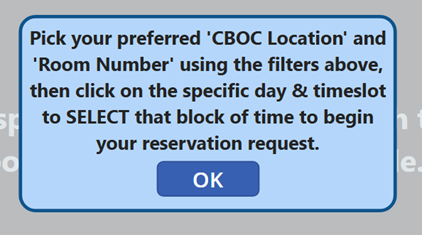
On schedule calendar view screen, click the blue �OK� button to
hide instructional popup:
|
|
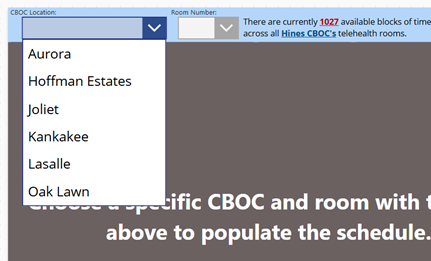
4. On schedule calendar view screen, click the �CBOC Location� dropdown menu & pick a building from the list: *NOTE: The total quantity of currently available blocks of time will dynamically change depending on your selected drop down filters.
|

|
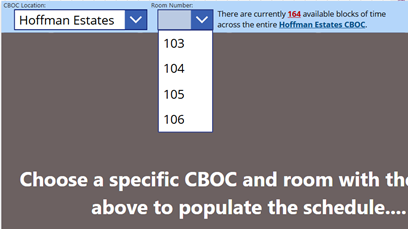
5. On schedule calendar view screen, click the �Room Number� dropdown menu & pick a room number from the list: *NOTE: The total quantity of currently available blocks of time will dynamically change depending on your selected drop down filters.
|
||||||||||||||||
|
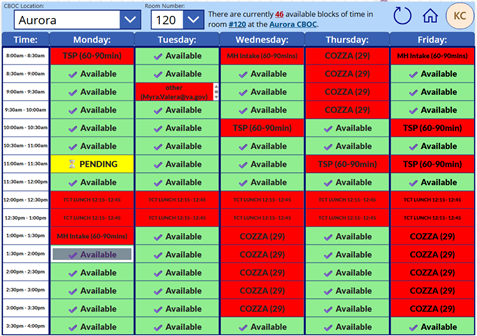
6. On schedule calendar view screen and once the �CBOC Location� & �Room Number� drop down menus have been filtered, the weekly calendar for the specified room will be displayed. Click any preferred block of time that is currently available in order to proceed.
|
||||||||||||||||
|
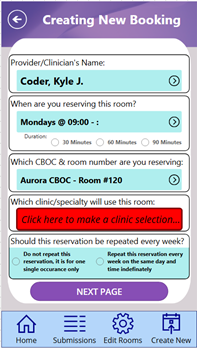
7. On the �Creating New Booking� screen, the app user�s currently selected values are prepopulated. The three mandatory clicks necessary before you are able to proceed are: reservation duration, clinic/specialty name, and reservation recurrence. *NOTE: As the user interacts with the buttons and makes selections, the data values will dynamically update to reflect the more specific information the user picked. Some of the interactive buttons or choices will trigger additional pop-up windows to get more specific data from the user.
|
||||||||||||||||
|
8.
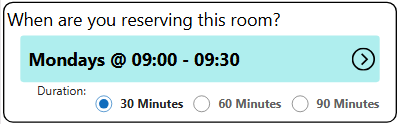
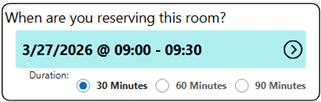
Click one of the three �Duration� radio buttons (30-minutes,
60-minutes, or 90-minutes) of this reservation, and your selection
will automatically populate adjusted start & stop times:
|
||||||||||||||||
|
9.
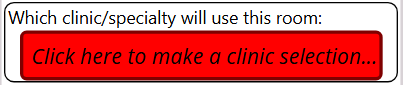
Click the red �Clinic/Specialty Name� button to trigger an
additional popup window to temporarily display:
|
||||||||||||||||
|
10.
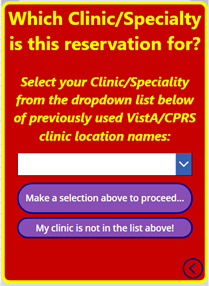
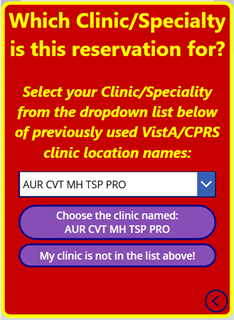
In the center of this �Clinic/Specialty� pop-up window, you can
use the drop-down menu to sort through any CPRS/VistA clinic
location names that have been used at any point in your selected
room�s historical past.
|
||||||||||||||||
|
11.
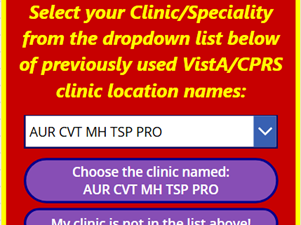
After picking your specific clinic/specialty drop-down menu in
the center of the �Clinic/Specialty� pop-up window, you can click
the dynamically populated button that says, �Choose the clinic named: [clinic name]�
|
||||||||||||||||
|
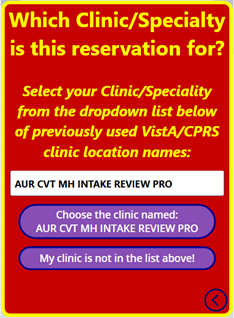
12.
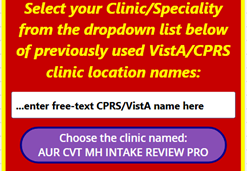
If your clinic/specialty name does not exist on the drop-down
menu in the center of the �Clinic/Specialty� pop-up window, you
can instead click the second button that says, �My clinic is not in the list above!�. This button will change the prepopulated drop-down menu into
an old fashioned plain text entry box instead, so that you can
free-text type the name of the CPRS/VistA clinic location name
that this reservation is for.
|
||||
|
13. After you have free-text typed the CPRS/VistA clinic location name into the text entry box in the center of the �Clinic/Specialty� pop-up window, you can then close the pop-up window by clicking the newly dynamically populated button that says, �Choose the clinic named: [clinic name]�
|
||||
|
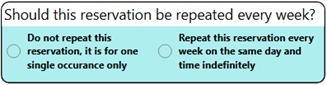
14. Click the one of the two �Recurrence� radio buttons to identify if this reservation is for �one single occurrence only� or to �repeat this reservation every week on the same day and time indefinitely�. *NOTE: If you choose the radio button for �one single occurrence only�, an supplementary �Single Day Calendar� pop-up window will be shown.
|
||||
|
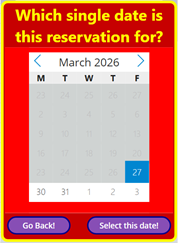
15.
If you�ve previously picked the �Recurrence� radio button to
select this reservation is for �one single occurrence only�, the
supplementary �Single Day Calendar� pop-up window will be shown.
You can navigate forward or backward by month, and click the
single specific date for this reservation:
|
||||
|
16. If you�ve previously picked the �Recurrence� radio button to identify that this reservation is for �one single occurrence only�, the supplementary �Single Day Calendar� pop-up window will be shown. You can navigate forward or backward by month on the calendar, and then click the single specific date for this reservation. *NOTE: After you have picked your single specific date for this reservation in the �Single Day Calendar� pop-up window, you will notice that your �Creating New Booking� screen has automatically updated with your selected value.
|
||||

 ������
|
17. Back on the �Creating New Booking� screen, all of the app user�s different selected values and demographics have been populated, and you can click the �NEXT PAGE� button: *NOTE: If a required button or value is still missing, the user will be given a warning flag pop-up across the top of their screen to alert them about the incomplete value.
|
|
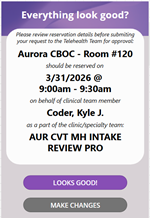
18. You will now be taken to the �Everything look good?� screen to review all your different reservation parameter values that you had selected on the previous screens. You should review the populated information carefully, and click the blue �LOOKS GOOD!� button to formally submit your reservation request to the TCT Team for processing. *NOTE: You will then be returned back to the app�s �Home� screen.
|
|
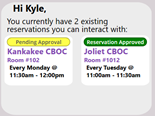
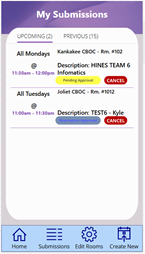
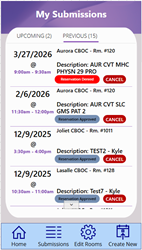
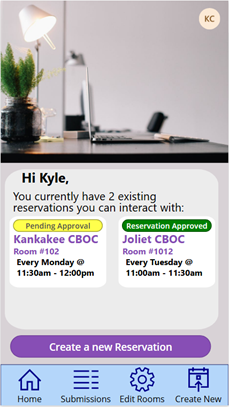
19. You will now be taken back to the app�s �Home� screen, allowing you to either interact with some of your previous submissions or create another new reservation request at a quick glance, or the ability to access the �My Submissions� screen to view all upcoming or previous reservations. Your previously submitted reservation requests will be reviewed by the TCT team, and you will receive an automated email notification once your request has been approved.
|
||||
|
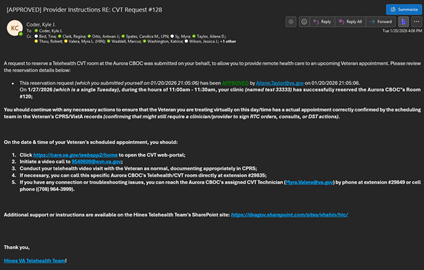
20. If your submitted reservation request is approved, the automatic instructional �Approval� email will be dynamically populated with the values of your reservation, the approving TCT staff member, and the pre-configured VVC/CVT web connection clickable hyperlinks to directly connect to the machine in the room you reserved:
|
||||
|
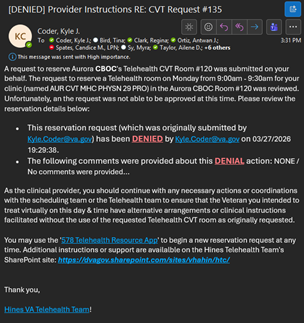
21. If your submitted reservation request is denied, then you will instead receive another� automatic instructional �Denial� email that is dynamically populated with the values of your reservation request, the TCT staff member who denied it, and additional supporting information & details about the denial action or alternative resources:
|
||||